See every tab. Find anything.
A visual Chrome tab manager for people who always have too many tabs open. See real page previews, search instantly, organise tabs into Workspaces and Tags, and jump straight back to what you need.
No account. No cloud service. Your tabs stay on your computer.
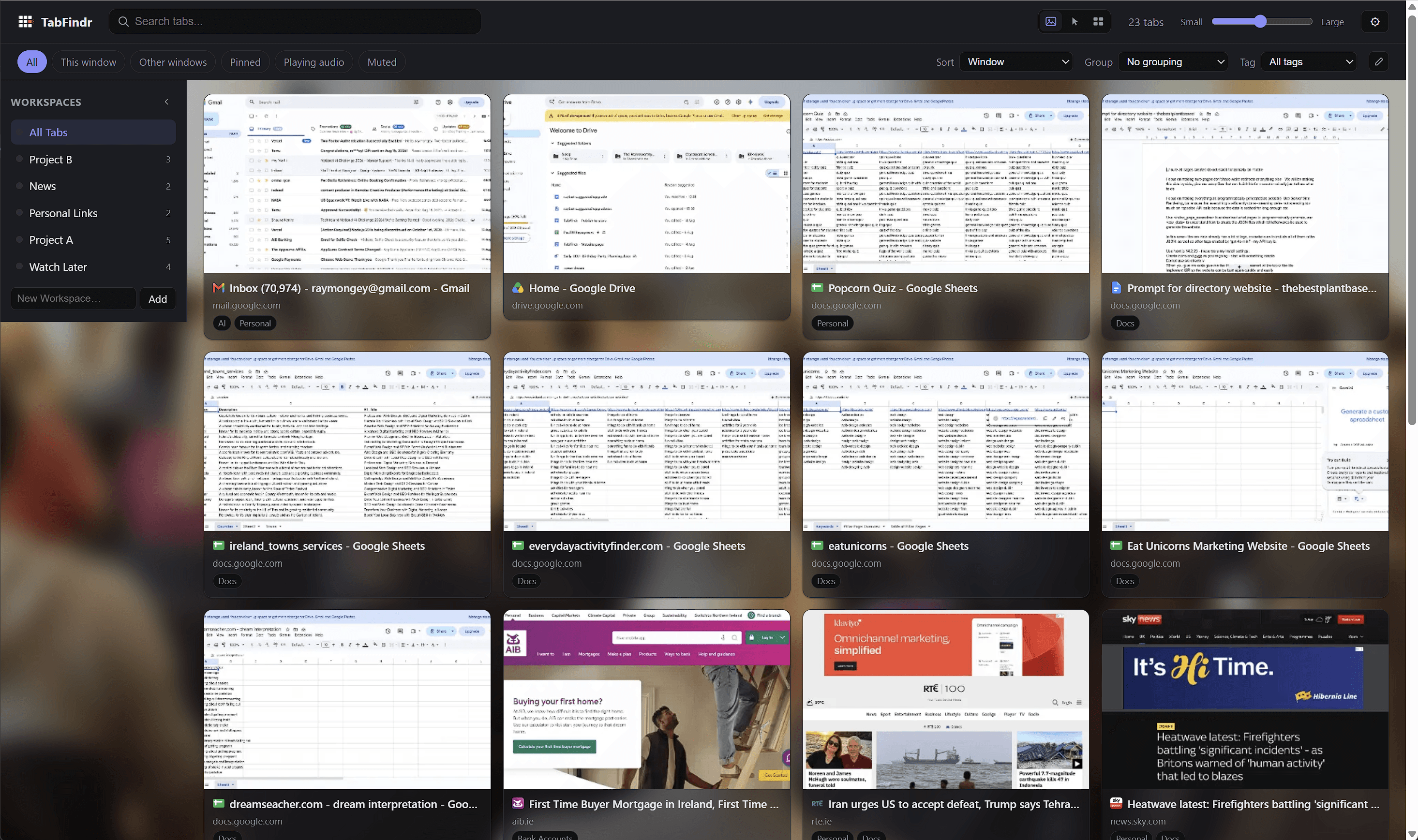
Full dashboard, every open tab
Built because this problem is ridiculously common.
TabFindr started with conversations at work and on calls with people who had 30, 40, even 50-plus browser tabs open.
During a Google Meet, someone would know the spreadsheet, email or reference page they needed was already open. The problem was finding it. They would scan tiny favicons, hover across tab after tab, open the wrong one, go back, and keep searching.
It seemed like there should be a better way.
TabFindr was created by Ray Mongey as a visual alternative. Instead of asking you to close everything, save everything as bookmarks, or completely change the way you browse, TabFindr works with the tabs you already have open.
See them. Search them. Organise them.
Find the one you need and get back to work.
Your tabs are already open. TabFindr helps you find them.
Bookmarks are useful for pages you want to save for later. TabFindr solves a different problem.
"I know the thing I need is already open somewhere. Where is it?"
Visual
See real page thumbnails rather than a text-only list.
Immediate
TabFindr works with the tabs you currently have open.
Searchable
Find a tab by title, domain, Workspace or Tag.
Project-aware
Group related open resources into Workspaces.
Flexible
Use Tags across different projects and Workspaces.
Scalable
Zoom the thumbnail grid up or down depending on how many tabs you have.
Non-destructive
Clicking a card returns you to the existing tab instead of opening another copy.
Local
Workspaces, Tags and settings are saved on your device, never uploaded anywhere.
Everything you need to handle way too many tabs.
TabFindr turns your open tabs into a visual, searchable dashboard, with the organisation tools to keep projects, research and everyday browsing apart.
See every tab as a real page preview.
Every open tab appears as a card with a real page preview, a title and a domain, across every Chrome window you have open. Click a card and TabFindr switches you straight to that existing tab.
- Real page thumbnail previews
- Titles and domains at a glance
- Works across multiple Chrome windows
- Click through to the existing tab, never a copy
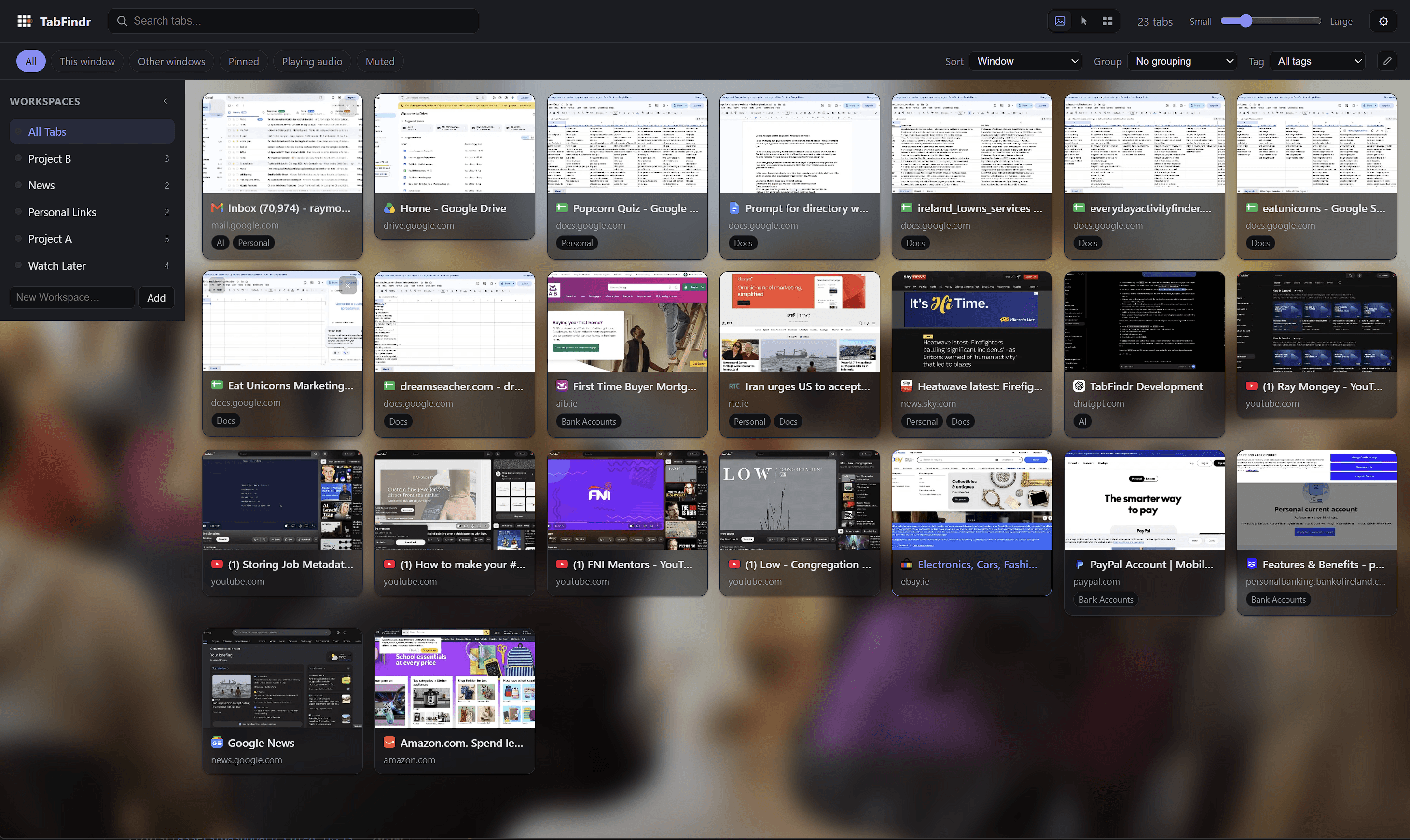
From 4 tabs across to a bird's-eye view of everything.
One slider controls how much you see at once. Zoom in for large, detailed previews when you are deciding between a few tabs, or zoom out to a dense overview that fits dozens of tabs on one screen.
- Large previews for careful browsing
- A compact, dense view for dozens of tabs
- Smooth scaling, no separate view modes to learn
Search finds it before you finish typing.
Search across every open tab by title, URL, domain, Workspace or Tag. A handful of simple operators make it even more precise.
workspace:TV Seriestag:referencedomain:github.com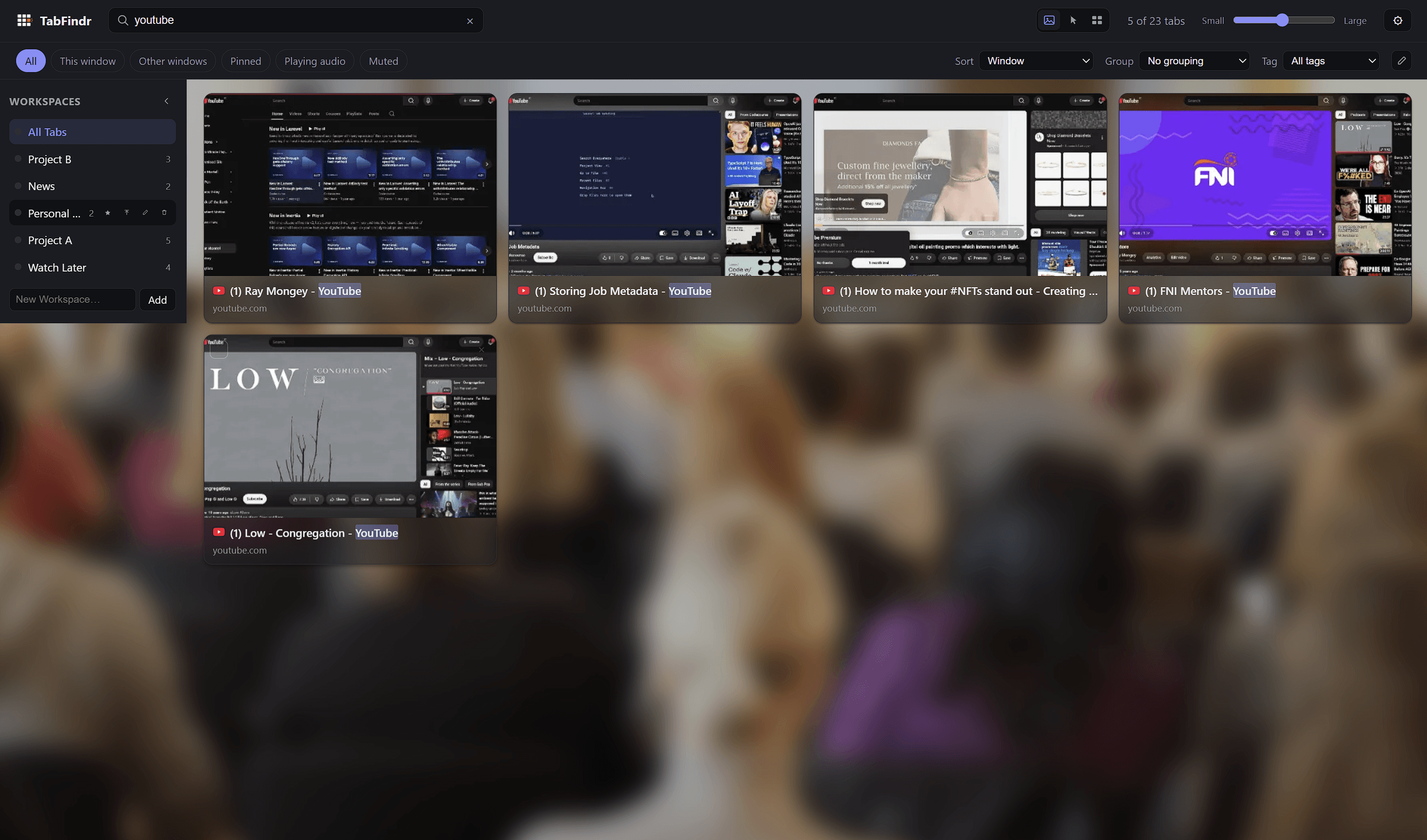
Keep every project's tabs together.
Workspaces are project-oriented collections built from the tabs you already have open, like TV Series, Client Project, Research, Episode 104 or Personal. Favourite the ones you use most, and put one tab in as many Workspaces as makes sense.
- Favourite your most-used Workspaces
- One tab can belong to multiple Workspaces at once
- Tabs are never moved or duplicated, only referenced

Label tabs however your work actually works.
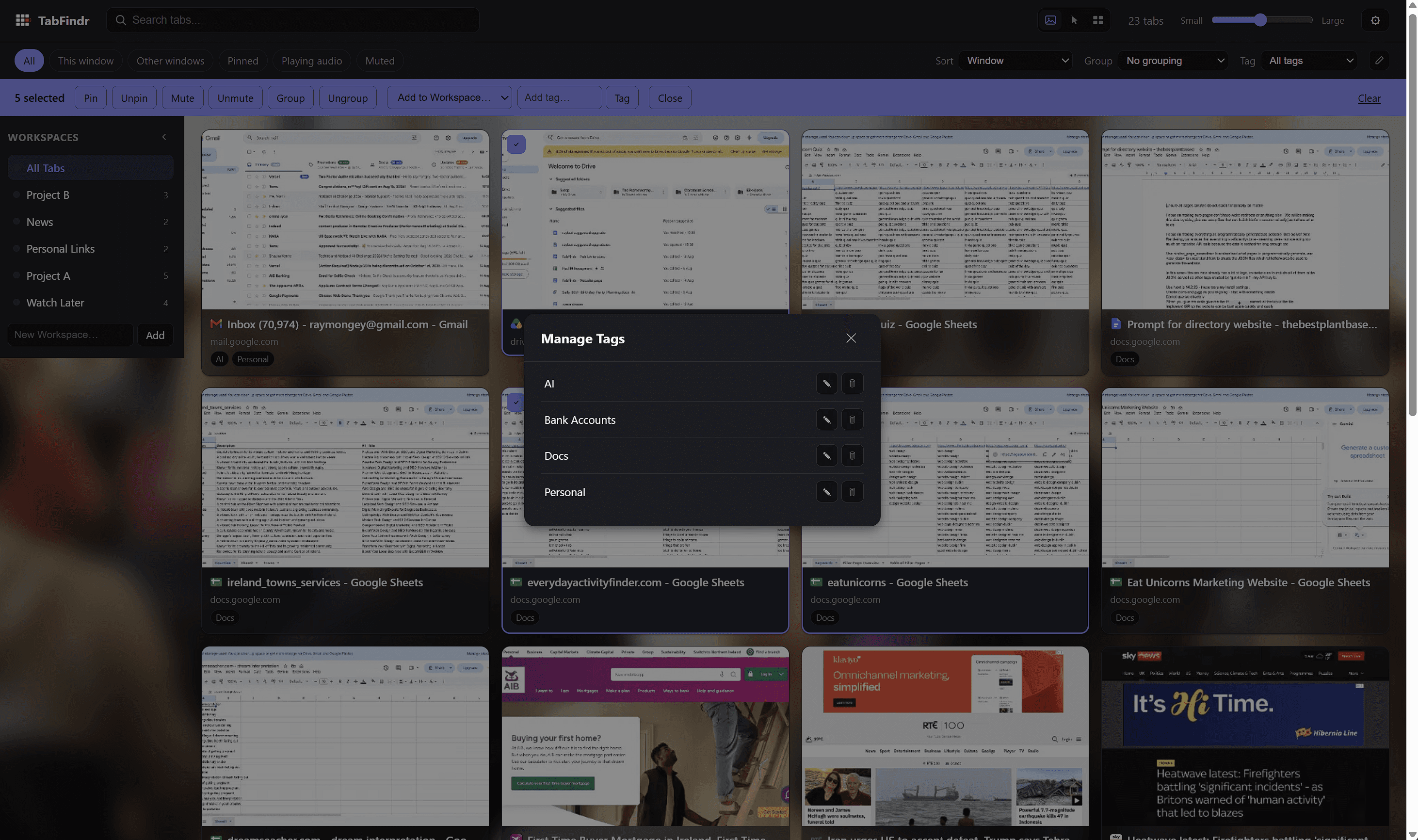
Tags are reusable labels you can apply across different projects and Workspaces, like reference, review, urgent, production or research. Manage them from one place and filter by Tag whenever you need to.
You've seen how it works. Try it on your own tabs.
TabFindr installs in a few seconds and works immediately with the tabs you already have open. No account, no setup, nothing to configure first.
Add to Chrome, it's freeManage several tabs in one move.
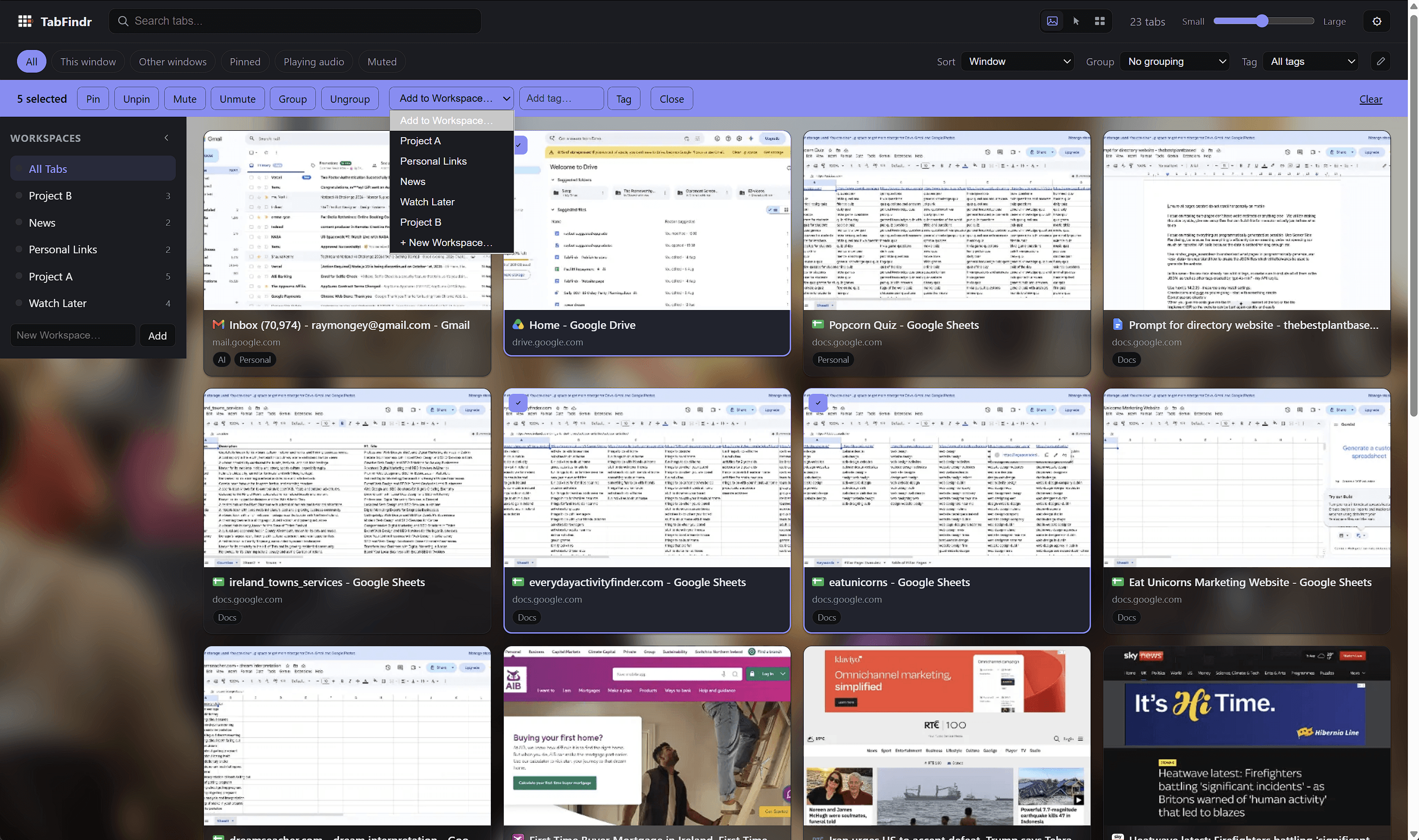
Select multiple tabs and a sticky action bar appears so you can pin, unpin, mute, unmute, group, ungroup, add to a Workspace, tag or close them together, instead of one at a time.
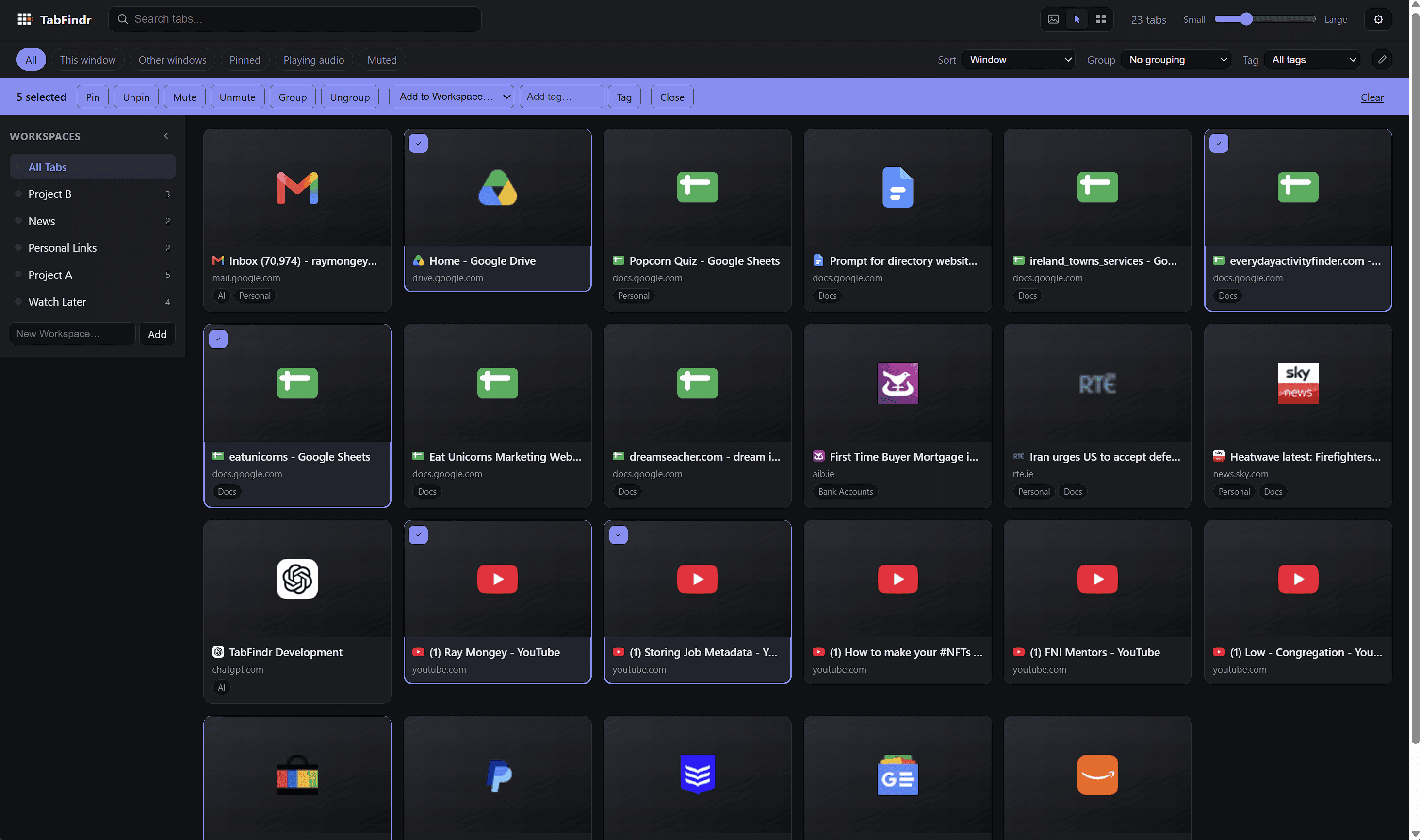
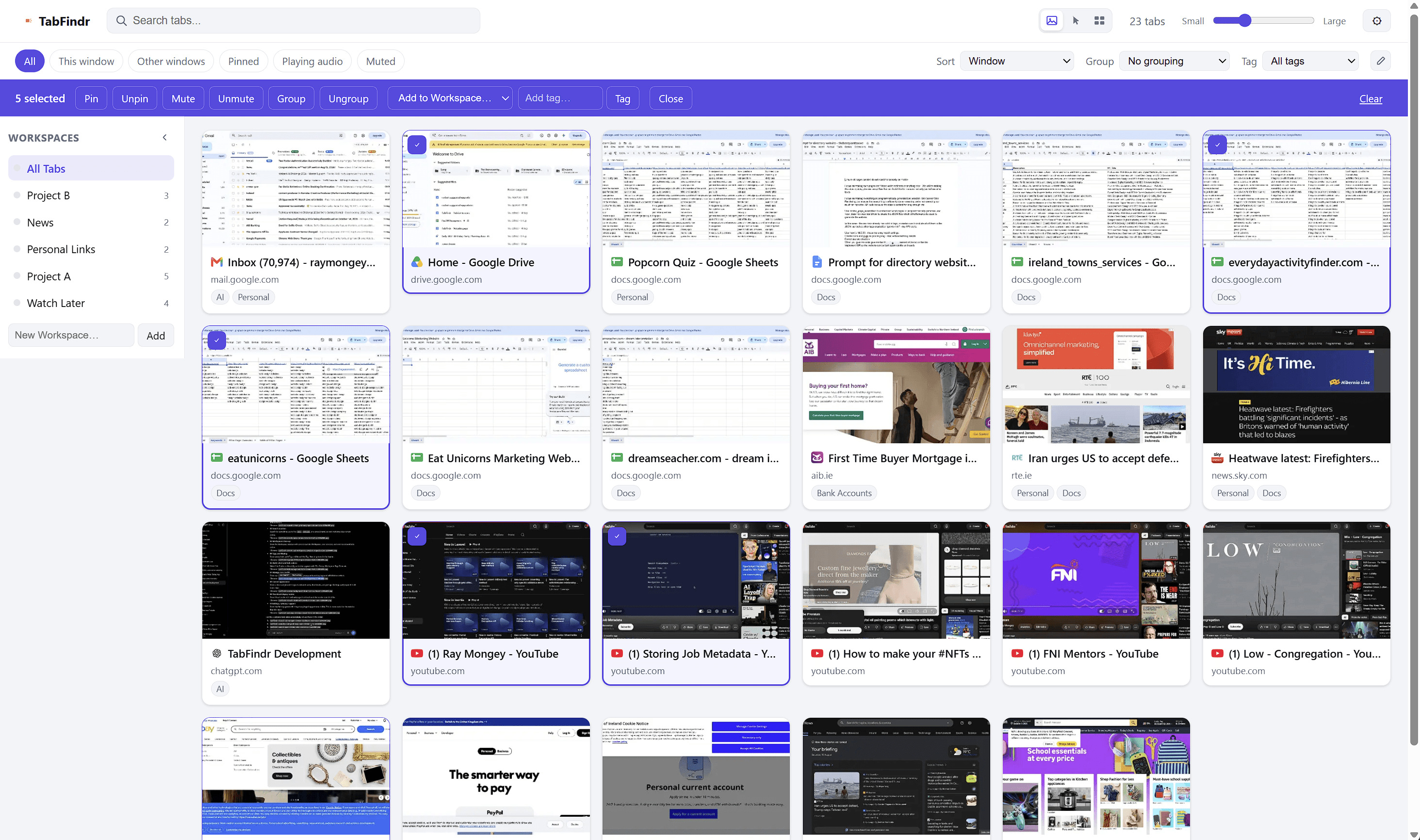
Choose how much detail each card shows.
Switch between Visual, Hover and Compact modes depending on whether you want full thumbnail previews, previews on hover, or a fast, icon-led list.
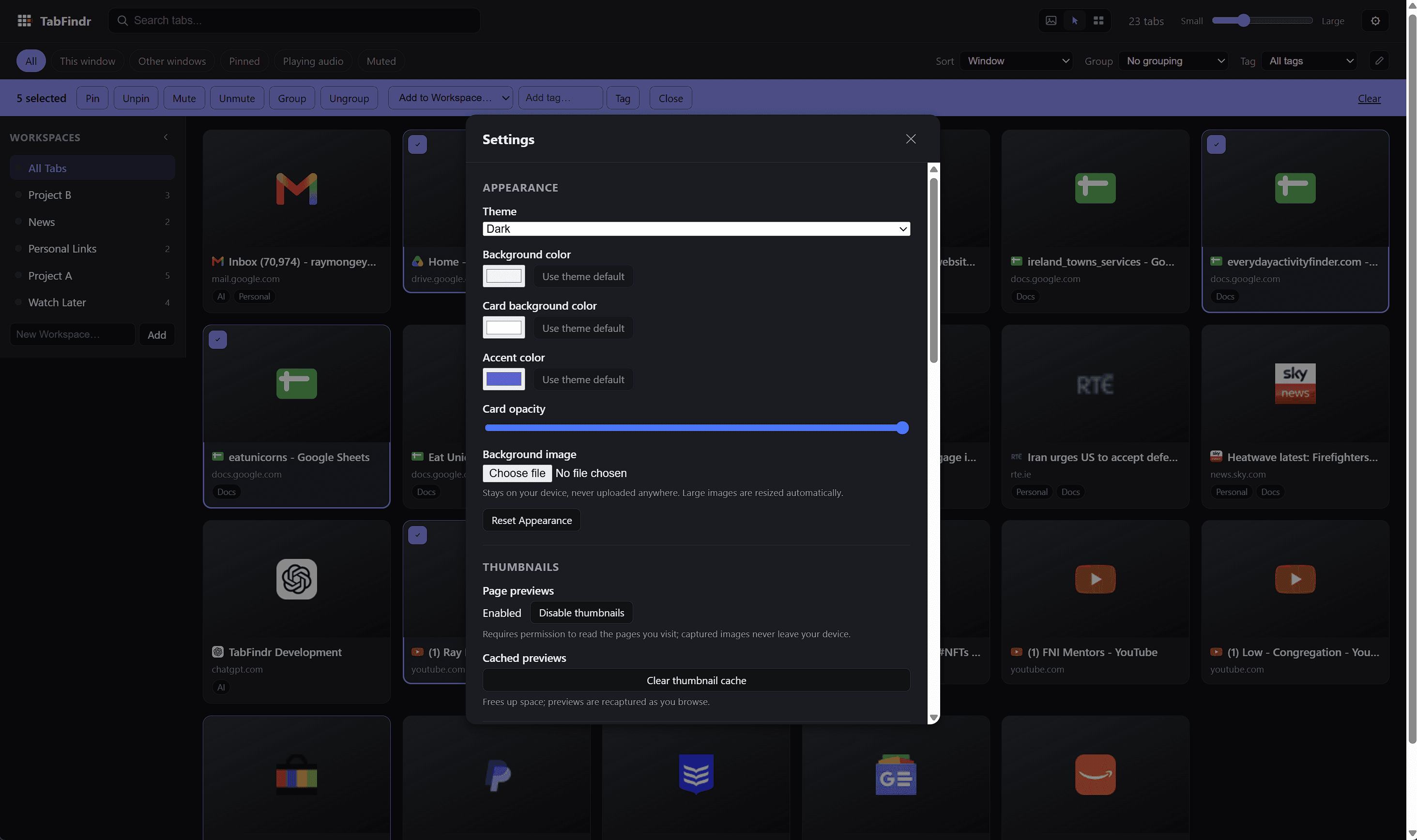
Make the dashboard feel like yours.
Choose light, dark or system theme, set a background image, and adjust card colour, card opacity and accent colour. Everything stays on your device.
Duplicate detection
TabFindr can spot duplicate tabs and help you close the extras safely, always keeping one copy of the page you need.
Up and running in under a minute.
Add TabFindr to Chrome
Install the extension and optionally pin it to your toolbar for one-click access.
Open TabFindr
Your currently open tabs appear in a visual dashboard, with real page previews and titles.
Find what you need
Browse visually, search instantly, zoom the grid, filter by window, or open a Workspace or Tag.
Jump straight back
Click a card and TabFindr activates the exact existing Chrome tab, no duplicates, no lost place.
Your browser is your business.
- No TabFindr user account
- No cloud backend
- No advertising
- No sale of browsing information
- No upload of thumbnails
- Settings, Workspaces, Tags and your custom background all stay local
Why does Chrome ask for website access?
Real thumbnail previews are optional. When thumbnails are enabled, Chrome asks for access so TabFindr can capture previews of the pages you view. Those previews are processed and stored locally on your device. TabFindr remains fully usable without thumbnail permission.
TabFindr is free.
There are no paid features hidden behind a subscription. TabFindr was created by Ray Mongey to make working with lots of browser tabs faster, clearer and easier. If TabFindr saves you time and you'd like to support its continued development, you can buy Ray a coffee.
Buy Ray a CoffeeQuestions people actually ask.
Is TabFindr free?
Yes. TabFindr is free to use, with no paid tier and no features locked behind a subscription.
Does TabFindr upload my browsing history?
No. TabFindr does not have a cloud backend or user account. Tab titles, URLs, Workspaces, Tags and settings are processed and stored locally in your browser.
Why does Chrome ask for permission to access websites?
That permission is only needed for optional real page thumbnails. When thumbnails are enabled, Chrome asks for site access so TabFindr can capture a preview of the pages you have open. Those previews are processed and stored on your device and are never uploaded anywhere. TabFindr works without this permission too, using titles, domains and favicons instead.
Does TabFindr replace normal Chrome tabs?
No. TabFindr works alongside Chrome's own tab strip. It gives you a visual, searchable dashboard of the tabs you already have open, rather than replacing how Chrome handles tabs.
Does clicking a card create another copy?
No. Clicking a TabFindr card switches you to the existing open tab. It does not open a new tab or duplicate the page.
Can one tab belong to multiple Workspaces?
Yes. A tab can belong to more than one Workspace at once. TabFindr does not move or duplicate the tab, it just keeps track of which Workspaces reference it.
What's the difference between Workspaces and Tags?
Workspaces are project-oriented collections, useful for grouping the open tabs that belong to a particular piece of work. Tags are reusable labels you can apply across different projects and Workspaces, useful for things like reference, review or urgent.
Can TabFindr work across multiple Chrome windows?
Yes. TabFindr can show tabs from the current window or from other open Chrome windows, and lets you filter between them.
Can thumbnails be disabled?
Yes. Real page thumbnails are optional and can be turned off in Settings. TabFindr remains fully usable without them, showing titles, domains and favicons instead.
Where is TabFindr data stored?
Locally, in your browser's own storage on your computer. TabFindr does not send Workspaces, Tags, settings, thumbnails or your background image to any server.
Is an account required?
No. There is no sign-up, login or user account. Install TabFindr and it works immediately with the tabs you already have open.
There is probably a tab open right now that you've forgotten about.
TabFindr gives you the whole picture. See every tab. Find anything.
Add TabFindr to Chrome, freeNo account required.